

Have you ever opened a spreadsheet and felt instantly overwhelmed by a jumbled list of names, inventory items, or client contacts? I certainly have. The good news is that Excel offers several reliable ways to bring order to that chaos. Learning how to alphabetize in excel is one of those foundational skills that saves hours of manual work and makes your data far more useful.
In this guide, we will walk through practical methods that cover everything from quick sorts to sophisticated automatic solutions. Whether you manage a small business, teach, or simply want to organize your personal projects, these techniques will help you work more efficiently.
Why Alphabetizing Your Data in Excel Matters
Organizing information alphabetically is about much more than aesthetics. When your data follows a logical order, you can find what you need instantly. Think about customer lists, book inventories, student rosters, or vendor directories. Proper sorting turns raw data into actionable intelligence.
Alphabetical order also prevents errors. Duplicate entries become obvious. Missing information stands out. Reports look more professional when presented in a consistent sequence. Many people underestimate how much time they waste scanning unsorted lists until they experience the difference a well-organized spreadsheet makes.
Getting Your Spreadsheet Ready for Sorting
Before you sort anything, take a moment to prepare your data. This step separates those who get perfect results from those who encounter frustrating errors.
Start by ensuring your data is in a tabular format with clear column headers. Remove any completely blank rows or columns within your dataset, as they can interrupt the sort process. If your list contains merged cells, unmerge them first.
Consider converting your range into an Excel Table by selecting your data and pressing Control + T. Tables offer automatic formatting, easy filtering, and the ability to expand dynamically as you add new rows. They also remember sort settings, which proves incredibly convenient for recurring tasks.
How to Alphabetize a Single Column Quickly
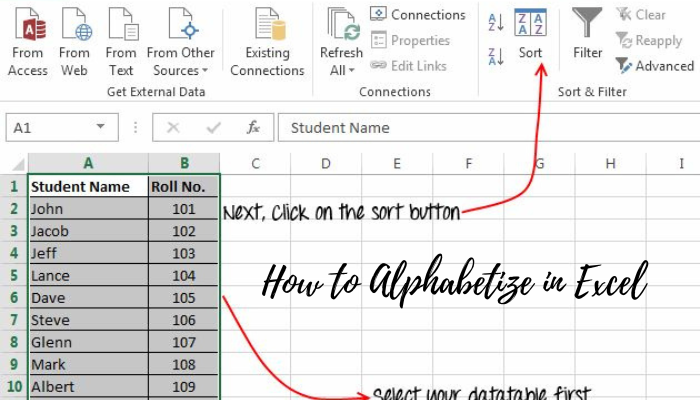
The fastest way how to alphabetize in excel remains the classic sort button. This method works consistently across nearly all versions of Excel.
Select any cell within the column you want to sort. Navigate to the Data tab and locate the Sort & Filter group. You will see two buttons clearly labeled A to Z and Z to A.
For even quicker access, you can also find these same A to Z buttons by clicking Sort & Filter in the Home tab. Many experienced users add these icons to their Quick Access Toolbar for one-click sorting.
Sorting by Multiple Columns in Excel
Most spreadsheets contain related information that needs coordinated sorting. For example, you might want to sort primarily by Last Name and then by First Name within each last name.
Excel handles this elegantly through the Custom Sort feature. Begin by selecting your entire data range. Go to the Data tab and click the Sort button (not the A to Z icons).
Always double-check that the My data has headers checkbox is correctly selected. This small detail prevents your column titles from being sorted into your data.
How to Alphabetize by Last Name or Other Specific Fields
One of the most common requests I receive involves sorting by last name when full names appear in a single cell. Excel cannot automatically distinguish between first and last names without some preparation.
The cleanest solution involves splitting the full name into separate columns using either Text to Columns or the newer TEXTSPLIT function. Once separated, you can apply the multi-column sort method described earlier.
This technique extends beyond names. You might need to sort by product codes that contain both letters and numbers, or by department codes embedded within longer strings. Understanding how to isolate the relevant portion of your data for sorting purposes dramatically increases your effectiveness.
Using Modern Excel Formulas to Sort Automatically
Recent versions of Excel introduced dynamic array functions that have transformed how we think about sorting. The SORT function represents one of the most significant improvements in spreadsheet management.
The basic syntax is remarkably simple: =SORT(range). This formula spills results automatically into adjacent cells and updates instantly when your source data changes. No more manually resorting after adding new entries.
You can also sort by specific columns and in different orders using additional parameters. For example, =SORT(A2:C100, 2, 1) sorts by the second column in ascending order. The function also accepts multiple sort columns for complex requirements.
Even if you cannot use the newest functions, the older array formula approaches still provide automated solutions for legacy versions.
Troubleshooting When Sorting Goes Wrong
Even experienced Excel users occasionally encounter sorting problems. The most frequent issue occurs when Excel sorts only one column, breaking the connection between related data. This usually happens because the selection was too narrow when initiating the sort.
Case sensitivity rarely causes issues because Excel sorting is not case-sensitive by default. However, if you need true case-sensitive sorting, you must use a helper column with the CODE function to create a sortable value.
When things look completely wrong, the Undo command (Control + Z) remains your best friend. This is why creating a backup copy before complex sorts is always recommended.
Pro Tips to Keep Your Excel Data Organized
Beyond basic sorting, several practices will elevate your spreadsheet skills. Consider creating custom sort orders for items that do not follow standard alphabetical rules, such as month names or priority levels. The Custom Lists feature in Excel Options makes this possible.
Regularly use the Remove Duplicates tool after sorting to clean your lists. Combine sorting with Conditional Formatting to highlight important items in your newly organized data.
For very large datasets, consider using Power Query. This tool offers more robust sorting capabilities and creates repeatable processes that refresh with a single click. Many professionals now prefer Power Query for any recurring data organization tasks.
Read Also: How to Alphabetize in Excel: Easy Step-by-Step Guide